FirstMagic User Guide: Editing in FirstClass
|
For working with FirstClass in general, refer to FirstClass Help; this document only concerns itself with a few practices that may prove useful when creating web pages.
Important notice: Never change the name of any root container object [the Menu, Portal, Sidebar and Footer containers], and never change a FirstMagic object´s Icon. Doing so will cause problems for your website. It is also unecessary - A FirstMagic icon is never visible on the web, and if you fill in the subject field of any object, it will override the name when viewed on the web.
You can use any FirstClass icon you like on any regular FirstClass object. But you cannot change FirstMagic icons, and should not use them on regular FirstClass objects. Simply leave them as they are. The FirstMagic icon range is from 25200 through 25531 - well away from regular FirstClass icons.
|
Add metadata to individual pages The better metadata you provide for any single page, the more visibility it will gain in Search Engines. Custom metadata for a particular page can be added in its envelope.
To access the envelope from inside a document, pull down the horizontal line at the top of its document window in FirstClass. To access it from the outside - from a container list - control-click its filename and select Properties [Windows[ or Get Info [OSX] from the contextual menu that pops up.
The subject field becomes the page title and visible link if filled in: otherwise, the filename is used. But a subject can be much more descriptive, and adds more searchable data about your page.
|
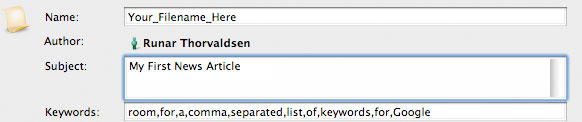 There is also a keywords field that will override general website keywords from Setup and so enhance page visibility. The Category field is not in use. There is also a keywords field that will override general website keywords from Setup and so enhance page visibility. The Category field is not in use. |
Avoid losing content A network outage while editing something online can mess up document formatting and lose what apparently was saved after connection is lost.
Best practice that will save the day:
- Save often.
- Before closing a document, copy its content to your clipboard [CTRL-A+CTRL-C]
- Re-open the document right away to check.
If something has happened you will discover it while everything is still on the clipboard, and can simply delete-and-paste to fix it.
Note: if your connection is lost and you cannot get back online right away, save your clipboard as an RTF document. RTF will not retain table styles, but it will save structure and formatting.
Mix literal HTML and Rich Text with care FirstClass allows for mixing HTML into Rich Text content, but it only works well if the two methods are separated from each other.
Before mixing in literal HTML, add some "normal" whitespace - a line break for example - before and after where the literal HTML will go. Else, your code may be jumbled together with regular content. This is expecially true inside FirstClass tables.
|
|
Select a client and stick to it You can choose between FCWS, The IS Intranet Interface, and the traditional FirstClass Client, to do your publishing.
However, you cannot edit the same document across different platforms and retain 100% compability - these are very different softwares. So, select the one you are most comfortable with, and keep to it wherever possible. Your operating system does not matter: using the same kind of publishing software on several different OSes simultaneously will work fine.
For FirstMagic web publishing, the traditional Client is the optimal choice: it allows you to use a wider range of custom forms.
Publishing to FirstMagic can be done with any software - even your e-mail program - but configuring your setup must be done with the traditional Client.
|
Understand FirstClass tables If a FirstClass table becomes very complex - tables inside tables, for example - it has a tendency to become corrupted.
Best practice for working with tables:
- When you make tables, keep them simple
- When they need to be complex, make many small ones instead of one big one.
- Don´t nest tables unless absolutely necessary
- Don´t use literal HTML inside tables if you can avoid it
If a table blows up: The following sequence will often repair it:
- Place the cursor in the first cell, and go to Edit > Tables > Select table
- Copy to clipboard,then do Select All [Control-A]
- Delete everything in the document
- Paste what´s on the clipboard back in
If this does not help, you will have to try to locate the broken cell. It will usually be in the last row [or the last row you edited].
|
Understand inline links URLs in FirstClass Documents can be inserted in two different ways:
- Write them out in full, and FirstClass will automatically make them into clickable links.
- Embed them in text, by formatting them in the Make Link dialog.
Best practice
- Always write the link in full if possible.
- If you need to embed it in text, use absolute URLs.
Why?
- Embedding relative links will only work if you never copy and paste the result; if you copy a relative http:// link, the FirstClass Client will convert it to a fcp:// link when you paste it back in. To avoid this, use absolute URLs: FirstClass leaves any link starting with http:// alone.
|
|

