 If you are a FirstMagic Owner, there will be an icon on your FirstClass Desktop that looks like the image to the left. This is your Website. It´s name should be your site´s domain name, without the http:// prefix. If you are a FirstMagic Owner, there will be an icon on your FirstClass Desktop that looks like the image to the left. This is your Website. It´s name should be your site´s domain name, without the http:// prefix.
FirstMagic "owner" do not refer to the owner of the site, but to a set of credentials - it is a FirstClass Privilege Group named "Owner", that, among other things, allows a member to edit FirstMagic websites. If you belong to this group, you will be able to edit any FirstMagic site you have on your desktop.
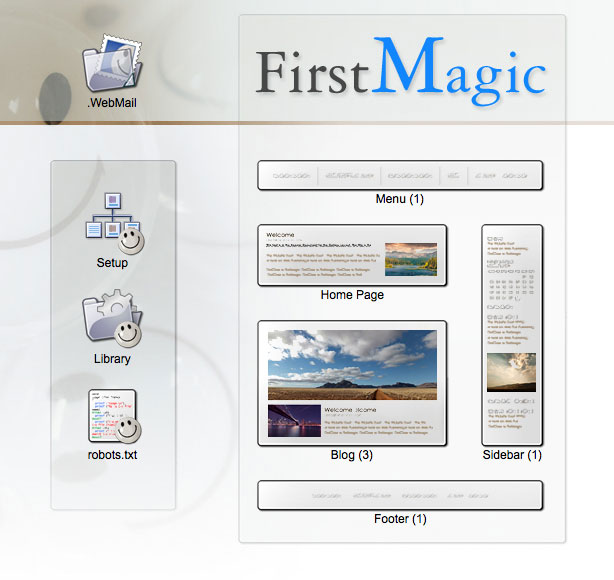
To get started with your site, double-click this icon. It will open up the window you can see in the screenshot below - the Website Root [click the picture to enlarge it].
|
Never re-name [or delete] anything in your Website Root: it may cause your site to stop working. It is also unnecessary - all objects have a Subject Field, and what you write there will override the Name - it becomes the visible title on the web.
Webmail If you have forms on your website, any responses will arrive here. Everything from the Contact Form to blog comments - any form you choose to publish - is addressed to this container.
Setup The configuration form for your website: it controls all aspects of it´s visual appearance and functionality. See The FirstMagic Setup Form chapter in this guide for a detailed walkthrough.
Library Contains configuration files, HTML includes, images and other objects used by the system. These files are meant to be editable: use them to further customize your website - see Using the Library chapter for details. You can also use the Library container to archive materials that do not fit in your publishing containers [like your website logo, for example].
robots.txt Instructions to Search Engines and other spiders on how to treat your website. It is preconfigured to invite indexing of publishing containers, but leave system files and other internal stuff alone [indexing system files in Google would pollute your search presence with lots of meaningless data]. Do not edit this file unless you are familiar with what it can do: it can affect your Google presence in a serious way.
Menu This is your website´s Top Menu. Documents, Calendars, Blogs, Gallery Layouts, Tile Layouts, Tab Layouts and PodCast Layouts you create here is published as Menu Items. FirstClass containers and FirstMagic Listing Layouts becomes drop-down sub-menus. The Search Widget will integrate itself into the Menu, but all other Widgets you create here will float above it and align themselves with the Website Logo.
The Menu is not always active: you can turn it on/off in Setup - in the SkinDesigner panel. This will also turn any Widgets inside it on/off.
Home Page This is the website´s actual index file: it serves the same function as index.html would in a static website. The Homepage Website Mode also uses it for publishing - you can use it as any other document, and it works the same way the regular webpage template does.
Portal The Main Publishing Container of the site. Depending on which Website Mode you use, it will work in different ways:
Homepage Mode -> Default: The Portal is not linked up anywhere, and will behave like a blog. You can make a link to it in the Home Page document, or make a FirstClass Bookmark for it in the Menu or Sidebar - or not use it at all, by placing your content in the Menu or Sidebar instead.
Homepage Mode -> Login: Anything you place in the Portal will be invisible. If you are logged in, you will instead see any Project Layouts in the Portal that you are subscribed to on the Home Page itself.
Homepage Mode -> Login + Public: Like above, exept that you can navigate from the Home Page to the Portal and see everybody elses Project Layouts too.
Note: in Homepage Login Mode, only Project Layouts will be rendered to the web - anything else in the Portal will be hidden from view [direct links to such objects will still work].
Homepage Mode -> Splash Screen: The Portal will behave like a blog, using the Home Page document as an introduction page.
|
Blog Mode: The Portal is the Website´s homepage, and will be rendered as a blog: only FirstClass documents, Conference messages, webpages, podcasts and videos will be rendered.
Blog Mode -> Condensed: Like above, exept that only the first paragraph of each document will be rendered, with links to Read More.
|
Tiles: Everything in the Portal container is rendered in a grid, each object as a tile with a preview of what´s inside it.
Tiles -> Expanded: Like above, but suppressing the Sidebar, making room for four tiles in a row instead of three.
Note: the Portal container isn´t always named "Portal".
|
A note on the Portal container v.s. FirstMagic Pro: If the site is Pro Licensed, the Portal will also work as a root directory for independent sub-websites. Sub-websites work the same way as Project Layouts when the site is in Homepage -> Login Mode [they can be subscribed to Personal Homepages], exept that they retain their functionality as independent sites also. |
Sidebar This is your website´s Sidebar - fill it with webpages, podcasts, videos, widgets, calendars, uploaded files, FirstClass containers and FirstMagic Listing Layouts.
- All document types will be rendered here in their entirety: web pages will output their contents, and podcasts and videos are playable without having to navigate to them.
- FirstClass containers and FirstMagic Layouts will be rendered as menus, listing links to everything inside.
- Calendars will appear with previews of the current month and the current date.
- Uploaded files will appear as icons with short descriptions [using their subject fields].
- Widgets have their own Sidebar modes, and will fit in nicely with other content types.
The Sidebar is not always active: you can turn it on/off in Setup - in the SkinDesigner panel. If it is inactive, the content area fills the entire width of the page.
Footer The Website Footer: fill it with Widgets, FirstClass documents and webpages. Widgets will arrange themselves below the Content Area of the page, while FirstClass documents and FirstMagic webpages becomes links in the Main Footer - flowing in after the Home/Top/Sitemap links there. |