FirstMagic User Guide: Templates and Layouts
|
Templates and Layouts is a FirstMagic 2.0 feature set that offers exiting new possibilities for web publishing in FirstClass.
You can build a FirstMagic website entirely without using either - publishing with regular FirstClass documents and containers will work fine, and allows you to plug all your pre-existing FirstClass content right into a new FirstMagic site: a FirstClass document is a web page, and a FirstClass container is a list of pages. This is how FirstMagic 1 works, and FirstMagic 2 works the same way.
This means there´s nothing new to learn if all you want to do is to transfer content from a FirstClass website or a FirstMagic 1 website into FirstMagic 2.
However, FirstMagic 2 Templates and Layouts allows you to do a great deal more - and things that earlier was dependent on custom coding is now just a few mouseclicks away.
Simply put, Templates are special FirstClass documents, and Layouts are special FirstClass containers. They quite literally change everything.
|
Templates Templates are document types, similar to FirstClass Stationary. Using the correct template for a particular task makes laying out web pages easier.
All FirstMagic Layouts have a toolbar with appropriate template types for that container. In some Layouts, there will be a Templates picker instead of one particular template.
|
To select a template, click on it. This will create an empty document of your chosen type, and bring it up on the screen. When you close it, it asks for a filename, and will then save itself into the Layout where it was created. It is published immediately.
To delay publication, click to the left of the filename (below the tiny red ball); this will unpublish it. |
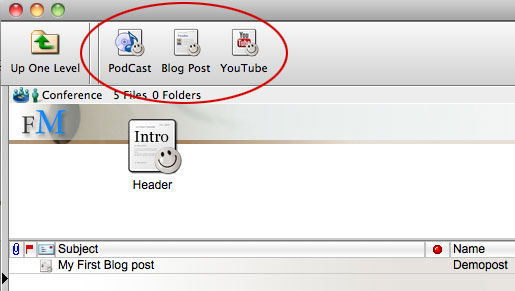
Above: Blog toolbar and unpublish icon [click to enlarge].
You can recognize unpublished pages: their list entries are in italic, and they have a small gray icon in the space you clicked. Simply click the gray icon to re-publish the page.
The title of any page will be its filename unless you fill in a subject in its envelope - the subject field always overrides the name. Read more about this in the Quickstart chapter in this guide.
Overview of template types in FirstMagic
|
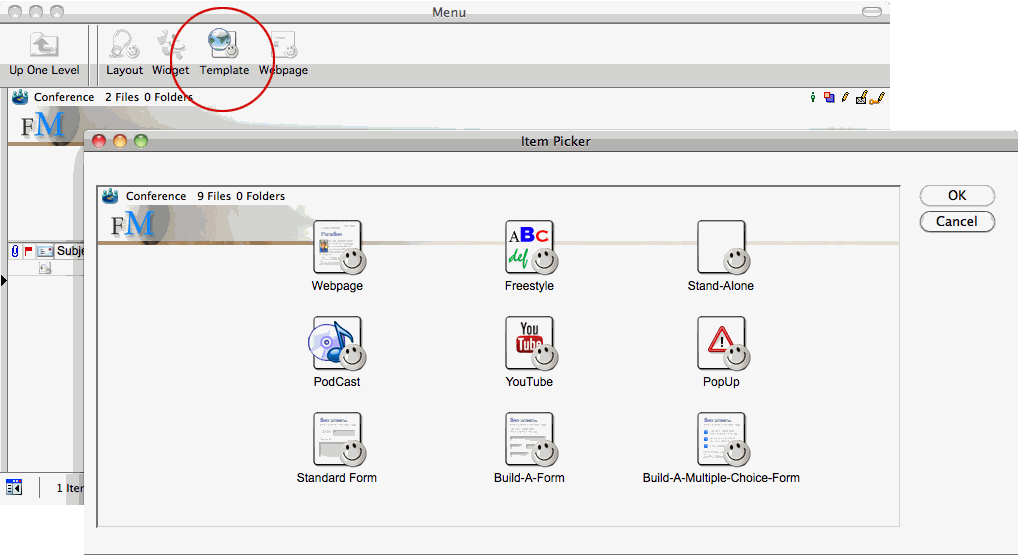
Webpage This is the normal Web Page template: it works exactly like a regular FirstClass document - you can use both FirstClass documents and FirstClass conference messages interchangeably with this template.
The Webpage template supports rich text, tables, images, slideshows and literal html.
|
|
Freestyle Works like the normal Webpage template exept that it ignores styling instructions from the active FirstMagic Skin. This means one can override the Skin definitions for font sizes, font faces and colors.
Note: do not use this template if you need your website to have a consistent look-and-feel throughout...
|
|
Stand-alone Like the Webpage template, but renders a Stand-alone page separate from the rest of the site: it will have no navigation - no Sidebar, Menu or Footer.
|
|
PodCast This is an Audio Recorder: record PodCasts directly or upload MP3 and Quicktime movies from your computer [by dropping them onto the open form]. It can hold more than one PodCast, and will generate a playlist that consists of all its recordings, uploads and siblings automatically.
Siblings = all PodCasts that is stored in the same container.
|
|
YouTube Displays video in your web pages if you input a YouTube Share Tag into the form. It will retrieve metadata about the current video from YouTube, and - like the PodCast form - generates its own playlists. It is also capable of playing lists from YouTube.
|
|
PopUp Works like the normal Webpage template, but will produce modal popups instead of opening a new page when clicked [it opens as part of the current page instead of navigating away from it].
|
|
Standard Contact Form A form that will also work like the Webpage template - it has room for text and images. If left blank it will display only form fields; if filled with content, it will behave like a normal web page with the contact form attached to the bottom.
|
|
Build-a-Form Build a custom form by simply point-clicking through various options: you can have up to 20 configurable fields plus an optional Contact Form field group.
|
|
Build-a-Multiple-Choice-Form Build a custom form with up to 20 multiple choice questions. The form can be timed [auto-submits after X minutes], and will be self-grading if you configure it to [delivering a report to the visitor after the form has been submitted].
|
|
Project Page [Portal only] If the website is in Tile Mode, this template will display an avatar on its tile if used in the Portal container. The avatar must be a png file named "avatar.png", and must be a file attachment to this document.
Personal Homepage [FirstMagic Pro] If the site is Pro licensed, the Project Page can publish entire FirstClass Personal Publishing websites inside FirstMagic: simply write the Personal Site Name [example: myfirstname.mylastname] in its Keywords field, and place the document in any FirstMagic container: The site will be rendered in the active FirstMagic Skin.
If the Project Page has no content, it will grab the first page it finds in the Personal Site and use for an Index Page. Otherwise, the content you add to it will be the index.
You can use this to make directories of Personal FirstClass Sites, and they will become part of your FirstMagic website. Read more in the FirstMagic Pro chapter in this guide. . |
|
The template picker: This picker is only available in navigation layout toolbars - the Menu, Sidebar and Footer containers in your Website Root. Other Layout toolbars has particular templates that
fits with their purposes.
If you ever need a special template somewhere else, just create it in a menu container and move it.
|
Layouts Layouts are container types, similar to FirstClass conferences. Their purpose is to render custom web pages: where a regular folder would simply be a plain list, a well thought out Layout can be a stylized web page in itself.
In FirstClass, a Layout behaves just like any other container, with three notable exeptions:
- It has a templates toolbar [see above for a list of available templates]
- Only the lower pane is rendered to the web
- It has no title on the web.
Exept for the Layout Header, content in the upper pane of a FirstMagic Layout is invisible: URLs to such objects will work, but the content will not be listed [regular FirstClass containers will list both the upper and lower pane, and do have titles].
To give a FirstMagic Layout a title, drop a Page Layout Header template into the upper pane: it´s subject becomes the title. If it has no subject, the object name becomes the title instead. Layout Headers can be found in the Layout picker too - a Document Header and a Calendar Header is available there. Using Layout Headers is always optional.
- A Document Layout Header behaves like a normal webpage template - you can fill it with content, and it will be rendered before the Layout listing.
- A Calendar Layout Header will display a calendar before the Layout listing.
Overview of layout types in FirstMagic
|
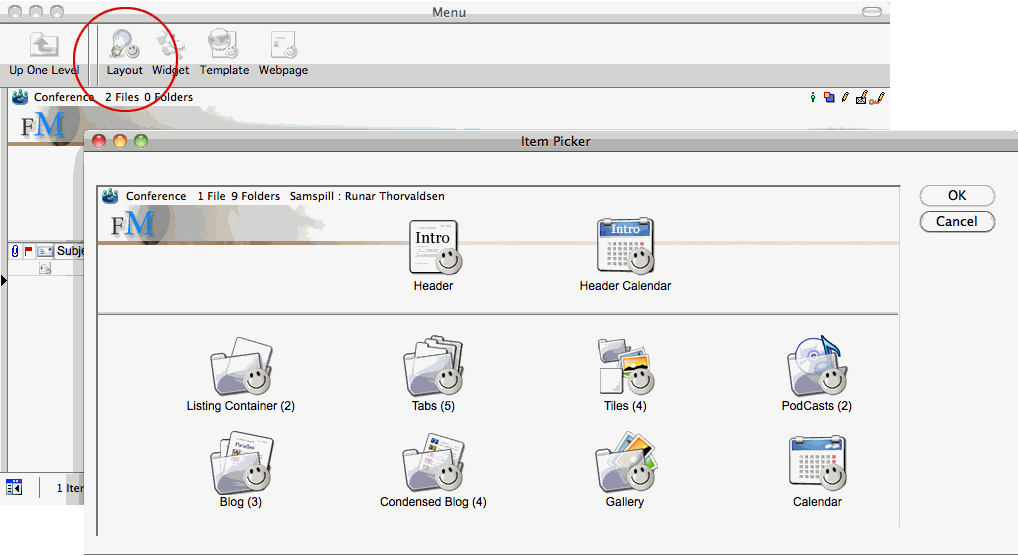
Document Layout Header A special webpage template that goes in the upper pane of the FirstMagic Layout container: it becomes the page header - the Layout title and any content that should precede a listing.
|
|
Calendar Layout Header Works like the Document Layout Header, but displays a calendar instead of text content. Drop it into the upper pane of your chosen Layout.
|
|
Listing Container Layout Will produce a simple, flat list of the files and containers within it.
In the Top Menu, this becomes a drop-down sub-menu. In the Sidebar, it becomes a flat list menu.
|
|
Tabs Layout Will sort all it´s content into tabs, with Documents, Containers, Bookmarks and Uploaded Files listed in separate tabs.
The Tabs Layout display is similar to how FirstMagic Pro sub-sites and Project Layouts work, exept that it will work anywhere on your site.
|
|
Tiles Layout Renders everything inside in a grid, listing each object as a tile with a preview of what´s inside it. Some object types [like uploaded files] will be represented by a default image you can customize - it is located in your /Library/Images/ folder. Simply replace it with a graphic of your choice.
|
|
PodCasts Layout Creates a list of all Podcasts, displaying the Cover Art for each one together with descriptions, titles and navigation. If Sharing is turned on in Setup, it will also have an iTunes Subscribe button, a RSS button and an embed tag button [embeds your PodCasts in third-party websites, similar to YouTube Share tags].
Note: this layout will only display PodCasts - other object types will be hidden [though direct URLs to them will work]. |
|
Blog Layout Will display FirstClass documents and conference messages, the Webpage/Blog Post template, PodCasts and YouTube videos, in a Blog format. It will not display other object types.
|
|
Condensed Blog Layout Works just like the Blog Layout exept that it will only render the first paragraph of each Post, together with a "Read More"-link.
|
|
Gallery Layout Displays uploaded images in a grid layout. Images are clickable, and expands in inline windows. If Sharing is turned on in Setup, it will also have Embed and RSS buttons [just like the PodCasts Layout], and image titles becomes links that will output Exif data [JPG only].
Note: The Gallery Layout will only display uploaded images - other object types will be hidden.
|
|
Calendar Layout Just like regular FirstClass calendars, and can be used interchangeably with them. Will render daily and monthly views, with popup event previews. Will also render Digital Signs [click the ~tilde [squiggly] button in day or month view to open it as a Sign]. If Sharing is active, will also offer an iCal export option.
If you drop this Layout into the Sidebar or into a Tile Layout, it will render a condensed version of itself there.
|
|
Project Layout [Portal Root container only] If the website is in Tile Mode, this Layout will display an avatar on its tile. The avatar must be a png file named "avatar.png", and must exist inside the Layout.
The Project Layout will sort all its content into tabs, with Documents, Containers, Bookmarks and Uploaded Files listed in separate tabs.
You cannot use this Layout anywhere else but in the Portal container - instead, use the Tabs Layout if you want tabbed functionality anywhere else.
If the Website is in Homepage -> Login Mode, you can subscribe FirstClass Users to Project Layouts, and they will be rendered directly on the Website Homepage after login - giving each user a personalized Homepage.
Sub-Website [FirstMagic Pro] If the site is Pro licensed, the Project Layout can be used to build wholly independent sub-websites. These can have their own Logos/Headers, Sidebars, Footers and FirstMagic Skins. Combine this with the Personal Homepage functions of the Project Page template, or with the Personalized Login Website Mode, to easily build complex large-scale solutions for your organization.
Read more in the FirstMagic Pro chapter in this guide.
|
|
The layout picker: This picker is only available in Website Root containers. Some will have more than one layout picker - or a different one suited for the container in question.
If you ever need a special Layout somewhere else, just create it in a Root container and move it. |
|