FirstMagic User Guide: Setup
|
 The FirstMagic Setup form is the SiteMap icon in your Website Root container: this is where you define all aspects of how the site is going to look, feel, and function. It has four panels: The FirstMagic Setup form is the SiteMap icon in your Website Root container: this is where you define all aspects of how the site is going to look, feel, and function. It has four panels:
- Website Mode: how your homepage will work
- Website Logo: your website header
- Robots: how they will behave
- Advanced Setup: language options, links behaviour, handheld devices
- What your website will look like
- Select a Skin
- Create your own Skin
- Information about you or your organization
- Google Translate
- Statistics
- Open Graph
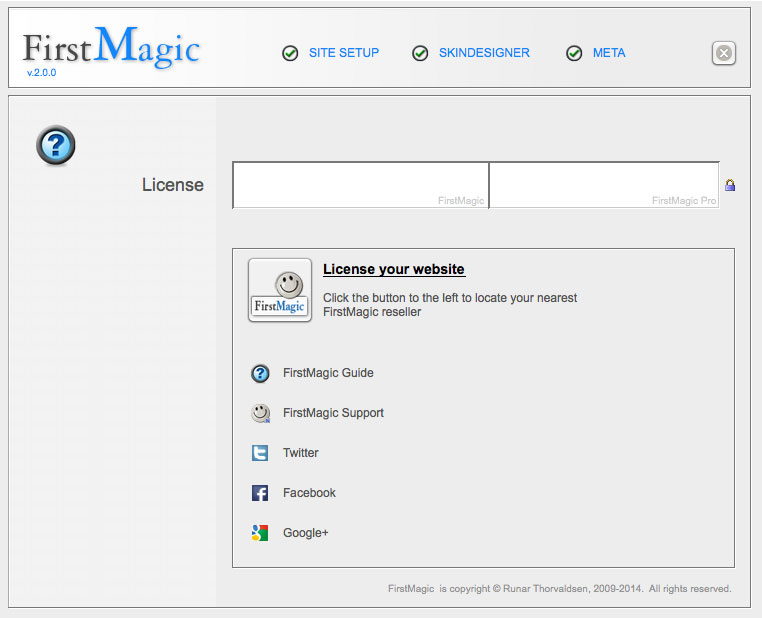
The License panel is hidden if the site is licensed; if not, it is the default panel. To navigate, click the buttons to the left of each Panel title. To get back to the License panel, tab out of the active panel simply by clicking it´s own button.
The License panel This is where to put your FirstMagic Activation Code. Without it, FirstMagic is in Demo Mode, and will time out after 30 days.
There are two licensing fields: the left is for FirstMagic, the right for FirstMagic Pro. Sites will work without a Pro code but not without the basic license. Just leave the right field blank if you don´t have a Pro license.
|
Should the demo time out before you have time to purchase a license, the Activation Code will reactivate it. It will also remove the "Demo" badge in the website footer.
When you have added a code, click the padlock to the right to protect the fields and make Site Setup the Start panel. |
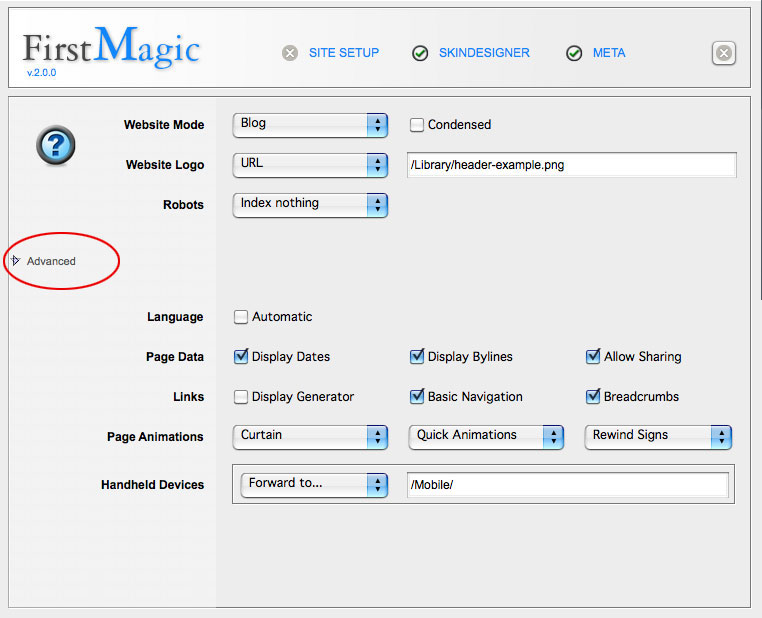
The Site Setup panel Setup has two sections; one that is immediately visible, and a drop-down with advanced configuration options [the "Advanced" arrow circled in red below].
|
Most websites are ready to use as is, without any need for advanced configuration - but the three visible options are important:
Website Mode defines the kind of website you want to publish.
Website Logo is the site header.
Robots tells search engines what you want them to do for your site. |
Website Mode Homepage makes your website´s Start Page into one single Homepage. This is a document that can be filled with rich text, images and slideshows. It has three different options:
- Default: as a normal web page.
- Login: visitors can log in to a personal Homepage that displays any Project Containers that they are subscribed to.
- Splash Screen: The Homepage document becomes an introduction to the Portal Container - with a forwarding button. The Portal container will work like a blog.
Blog will skip the Homepage document entirely: the Portal container becomes the Homepage, and will behave like a blog. It has two options: normal and condensed. Condensed means the blog will only display the first paragraph of each posting, plus a "more"-link.
Tiles is a media layout: it will display the Portal container in a grid, with previews of what´s inside each tile. It is similar to the Blog Mode exept that it will display everything - containers, movies, images, text files, etc. [Blog Mode only displays blog posts].
The Tiles Mode has an "Expanded" option that will suppress the Sidebar to make full use of the entire Homepage.
Website Logo Your website´s Header - link up an image you want to use, and upload it to the Library container [it´s what it is for].
Robots Tell Google and other search engines how you want your website indexed.
- The Description field: a short sentence describing your website.
- The Keywords field: a list of comma-separated keywords you want to associate your site with. Do not use more than 8-10 words, or Google will treat it as spam.
The Advanced fields in Site Setup
Language: If Automatic is checked, visitors will get all website terms in their native language. If unchecked, you can define the language yourself, and edit all website terms - see the Terms.inc file found in /Library/HTML/
Page Data:
- Display Dates: will put a Last Modified date/time stamp on all pages.
- Display Bylines: will put the author´s name on all pages.
- Allow Sharing: will add RSS and Embed buttons to all media pages [blogs, podcasts, image galleries etc]. In image galleries, this will also enable Exif output.
Links:
- Display Generator: will show a link to FirstMagic in the Footer.
- Basic Navigation: will add Home, Print and SiteMap links to your Menus/Footers.
- Breadcrumbs: will add a breadcrumb path to all pages.
- Page Animations: choose a page transition effect, or set to "none".
Handheld Devices:
- Ignore: handhelds will get the regular website.
- Detect: handhelds gets an option to switch to a simplified layout.
- Forward to...: handhelds are directed to a container you choose to fill with custom content optimized for them. Use a relative URL in the Forward field: /mypath/tothisfolder/
|
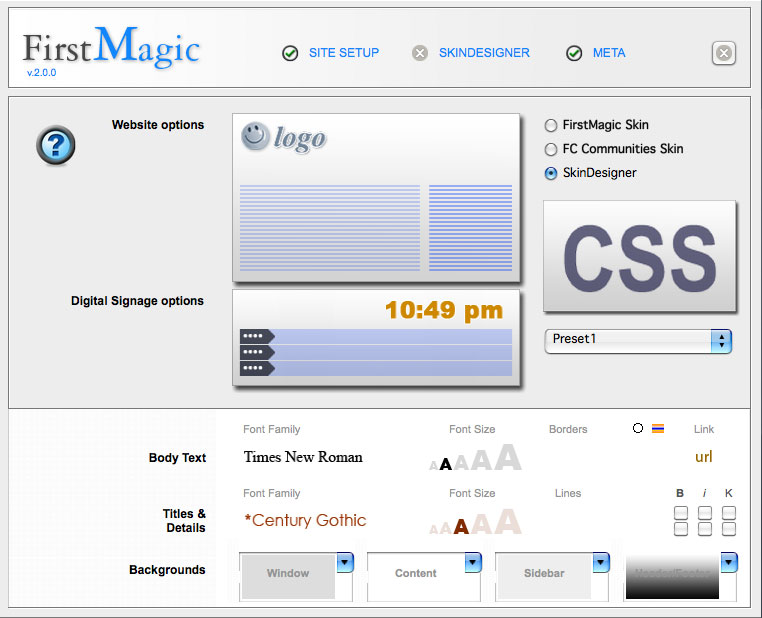
The SkinDesigner panel The SkinDesigner is divided in sections that excludes each other: FirstMagic Skin, FC Communities Skin, and SkinDesigner. Switch between sections with the radio buttons on the upper right.
This panel defines the visual appearance of your site. It is interactive, and the fields will change depending on your selections. The Website and Digital Signage options to the left are clickable previews:
|
To move the logo around, just click on it
To turn the Top Menu on and off, click below the logo
To move the sidebar around, click on it
To change the time format, click on the clock
... You will get a preview of any changes, and your choices takes effect on your website immediately. |
- FirstMagic Skin: Select a built-in FirstMagic theme for your website.
- FC Communities Skin: Select a FirstClass communities theme for your website.
- SkinDesigner: Edit or create a custom theme for your website [this option is displayed in the screenshot above].
The SkinDesigner has five presets: CSS, and Preset 1 through 4. If you are a developer, you might want to choose CSS: it will let you write a custom stylesheet from scratch and link it into the website.
The other four is to make a point-and-click design. The end result of this is a stylesheet too, but you won´t have to write it: FirstMagic does it for you, and it happens in realtime, so you can see your work on the website immediately.
The CSS Preset simply brings up a field where you can write in the URL to your stylesheet. This can go anywhere you like - but the default is local to the website: /Library/html/FMskin.css. You will find a commented example to use as a jump-off point on that path.
The Presets 1 through 4 brings up the styling dialog you can see in the screenshot. It works the same for all four, but the layout of each preset is different:
- Preset 1 = a roomy layout
- Preset 2 = a narrow layout
- Preset 3 = a stretch layout [a scaling layout]
- Preset 4 = the same as Preset 1, but the background color pickers are replaced by the URL field for a background image.
|
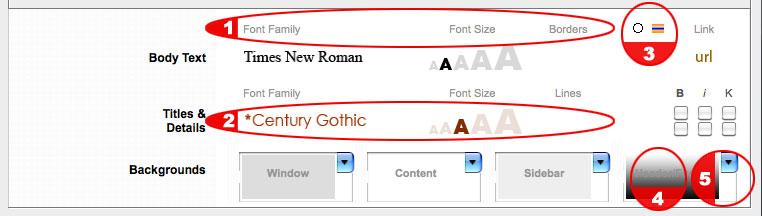
The SkinDesigner styling dialog The point-and-click Designer tool in Presets 1 through 4 allows you to define fonts, sizes, borders, colors and backgrounds for your site.
|
1: Click the "Font family", "Font Size", "borders/lines" and "Link" titles to select fonts and sizes from a drop-down. Click the titles themselves, not the previews below.
2: Click the previews to bring up a color picker.
3: Left: click to choose square or rounded borders. Right: click to turn drop shadows on/off for your borders.
4: Click the background area to select how background colors will appear [gradient, flat, or transparent].
5: Click the drop arrow to bring up the color picker for this background.
|
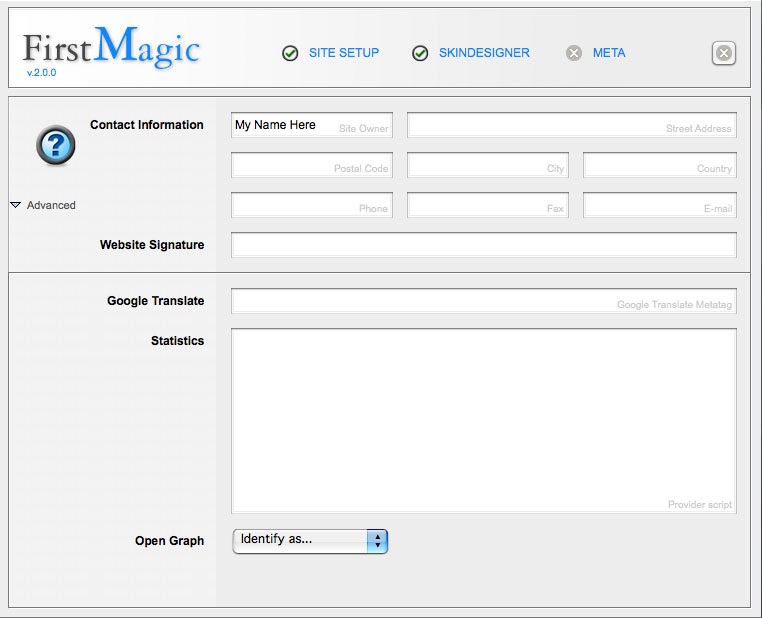
The Meta panel All metadata for your website. You will want to put in a title or name in the Site Owner field [it becomes the Browser Window title], but the rest is optional.
If filled in, Contact Info fields are used by various widgets and in Print Layout headers. The Website Signature field is a short line of text in your website footer if filled in. A copyright notice, for example.
|
Click Advanced for more meta fields:
Google Translate: if you use the Google Translate Widget, or install Google´s translator services via some other method, put the Translator´s Meta ID tag here.
Statistics: paste the code for any statistics package here to activate it for all your pages.
Open Graph: activate by filling in a Facebook User ID or App ID in the field that appears. You can fill in more IDs by comma-separating them. |
|