FirstMagic User Guide: Establish ownership
|
Before you start using a new FirstMagic Site, there are three simple things you should do to establish ownership of it:
1: Give your site a name 2: Make sure you have Controller access to inbound WebMail 3: Acquire a Firstmagic Activation Code for your site
The first two should be taken care of right away.
|
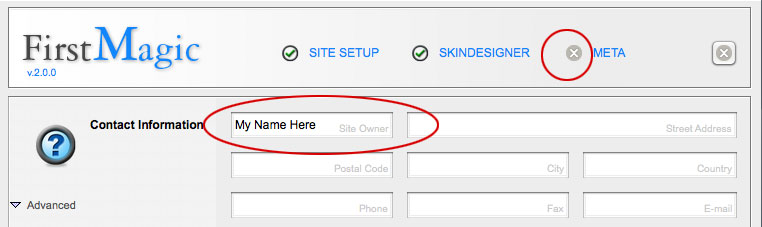
Give your new website a Name Until you do this, all pages on your site are titled "My Name Here", which isn´t too helpful for visitors or Search Engines.
To change this into your preferred name, open the Website Root, then open the icon labelled Setup.
|
In the form that opens up, click the Meta button, and fill in the name of your organization in the very first field. The other fields are useful, but not essential - and can be filled in at any time. |
Inbound WebMail This container in your website root is the recipient of all inbound messages sent to you from visitors to your site.
For security purposes, WebMail is by default configured so that nobody can read it. The FirstClass Administrator will open it for your account. You should verify that this is the case:
- Open your Website Root -> the Footer container, and publish the Contact Us form [click the gray icon by it´s filename]
- Visit your site and click "Contact Us" in the Footer. Fill in and Send the form.
- In FirstClass, go into your website root and open the WebMail container
- Open the message that should have arrived there
- Delete the message
... If some of the above fails, contact your FirstClass Administrator.
More on WebMail: please read the Managing Inbound Messages chapter in this guide.
|
License your site If you subscribe to a FirstMagic Hosted Service, your site is already licensed, but if you have installed FirstMagic yourself you will need to purchase a license to use it beyond the 30-day demo limit.
See the Where to purchase FirstMagic products chapter in this guide to locate your nearest FirstMagic Reseller, or visit this page for a list: http://www.webtrait.com/sales
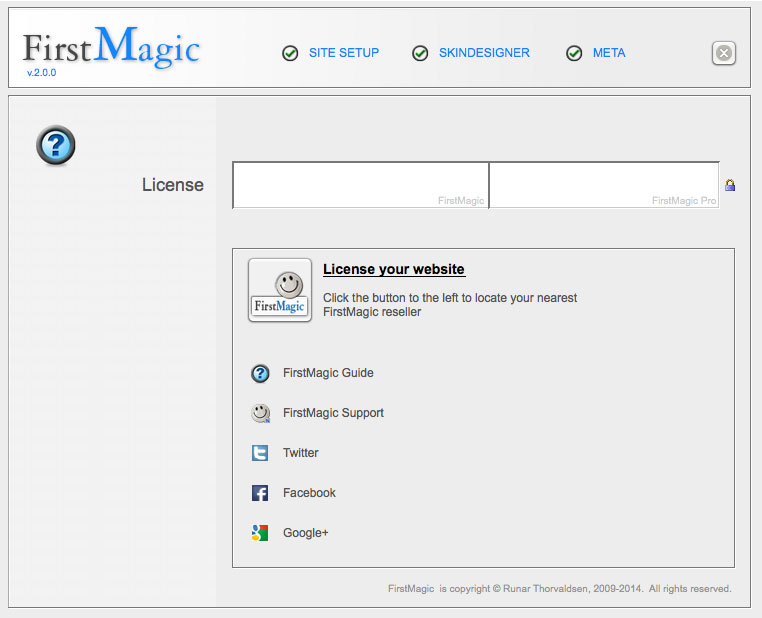
When you have your Activation Code, open Setup in your Website Root, and paste the code into the left field on the default panel [the License panel is hidden if the site is already licensed; otherwise, it is the default panel].
Note: there are two licensing fields: the left is for FirstMagic, the right for FirstMagic Pro. Sites will work without a Pro code but not without the basic license. Just leave the right field blank if you don´t have a Pro license.
|
Should the demo time out before you have time to purchase a license, the Activation Code will reactivate it. It will also remove the "Demo" badge in the footer.
When you have added a code, click the padlock to the right to protect the fields and make Site Setup the Start panel. This will hide the License panel permanently.
If you ever need to change licensing options, tab out of any active panel by clicking it´s close button: this will bring up the License panel again. |
|