FirstMagic User Guide: Tips and tricks
|
How to...
|
Back up your content A Versioning Rule will back up your documents, and allows you to roll back to any previous version at any time. It happens entirely in the background, and kicks in automatically whenever you do an edit to any page.
Versioning is easy to set up, but it must be set up for every container you want it to work in.
- Create a FirstClass conference on your Desktop. Give it a single-word, unique name.
- Set its permissions to: yourself = controller + All Users = disallowed. This is essential, since it will prohibit search engines from spidering your backups [if they did, your site would pollute its own search results in a massive way, and you would get SEO problems].
- Drop an Alias of the Backup conference into the upper pane of every Website container you want to back up.
- Create and distribute the Versioning Rule
How to make the Versioning Rule
1: |
Open the first Website container [any one that have the Backup Alias in its upper pane], and select Collaborate -> Rules from the FirstClass menu. |
2: |
Click the button for New Application Rule. |
3: |
Build the Versioning Rule, like so:
Conditions: When: |Item Modified] If: [the object type] is a [document]
Actions: Then: [copy to folder] --> the name of your Backup Alias |
4: |
Now you need to clone this rule into Rules for each container you gave a Backup Alias:
On Windows, CONTROL-drag your Versioning Rule onto your FirstClass Desktop [on OSX, ALT-drag instead]. This makes a copy of it.
Open Collaborate -> Rules for each of your other Website containers, and Control/Alt-drag the desktop copy into the Rules window of each. |
5: |
Test the Rule: try to edit something, and check that a backup is generated in your Backup conference. |
Note: Rules will only work in conferences: they do not work in folders. All FirstMagic Layouts are conferences. Also note that Rules will only work if you do the above steps in order: the Backup Alias must exist BEFORE the Rule does.
|
Change the publishing order Layouts can publish its content by date, filename, subject [web page title], or by a number of other properties.
To change the sort order of a Layout, open it, then open View -> Change View Properties in the FirstClass menu. This opens up a dialog where you can define your preferred sort order.
Note: there is some latency in how the server treats this setting: if it does not take hold on your website immediately, close the Layout window and re-open it: this will force the server to notice your changes.
|
Change your website labels Labels are all hard-coded terms on the site: these are automatically populated by the server according to the language of the visitor. Where an American sees a link labelled "Home", a Swede will see "Häm".
Most browsers signals the language of its operating system, and the server will respond with the requested language. Currently, the following languages are supported: Danish, Dutch, English, Finnish, French, German, Italian, Japanese, Norwegian, Spanish and Swedish.
To test how this works, visit your site with a browser that allows you to manually specify a language [like Firefox, for example].
You might want to gain control over what language is served, or what the labels say. To do this, open Setup -> Site Setup -> Advanced, and uncheck the "Automatic" Language checkbox. This deactivates the feature, and instead outputs whatever terms you provide in the terms document: /Library/HTML/terms.inc.
Open the Library in your Website Root, and find the terms.inc file in the HTML folder. All editable terms are colored red.
Note: if you translate the terms to something other than English, you need to declare your chosen language by updating the langage code in the Sitelanguage tag there. This because you have turned the language feature around - instead of the browser requesting a language, you must now tell it which language to interpret your site with.
|
Create Slideshows All web pages made with the Webpage template, with a FirstClass document, or with a FirstClass conference message, can have rotating slideshows - and they are drag-and-drop easy to make. Here´s how:
- Collect your images [png, jpg and gif files], and give each one the prefix slide_
- Open the web page document, and drag down the top divider to access its envelope
- Grab all the images, and drop them into the envelope
That´s it. Any image attachment with the prefix slide_ becomes part of the slideshow.
Slideshows will appear at the top of the web page, ahead of any body content. The rotating speed is determined by the Page Animations speed setting in Setup -> Site Setup -> Advanced.
|
Disable Widgets on a specific page You can use the Context-Sensitive trick to place widgets on certain pages only, but the opposite can also be useful: remove Widgets from one specific page.
- Open the Properties Window [Windows] or Get Info [OSX] for the page you want to remove Widgets from
- Check the ReadOnly Checkbox
This will remove all Widgets exept for Assistive Tools, Google Translate and Search from the page in question.
|
Edit your website from a web browser Login to the Website with a browser by clicking the Login Hotspot at the lower left corner of any of your web pages.
The hotspot is tiny - just 10x10 pixels. It is at the absolute bottom, in the left corner of the web page, and it is invisible.
- When logged in, notice the FirstMagic Smiley in the right margin of your browser window: clicking it will open a panel with links to the [at any time] Current Page, it´s parent container, and the Website Root. Clicking a link will open the corresponding FirstClass Object for editing directly - bypassing your FirstClass Desktop.
- To close the panel, click the Smiley again.
- To log out, click your own name in the bottom right corner of the browser window.
|
Expire web pages automatically Any page can delete itself automatically after X number of days. There are two methods available to set this up:
- Set it up for all pages in a container, or - Set it up for individual pages.
... You can also combine: set a default behaviour for all pages in a container, then override it for individual pages.
- Set expiry for all pages: Open the container Permissions form [Collaborate -> Permissions in the FirstClass menu], and define your preferred behaviour with the options there.
- Set expiry for a single page: control-click on the page name in the container list to bring up its Properties window - where you can set your preference for this page only.
Note: FirstClass conference messages already have expiry dates [FirstClass documents and FirstMagic templates do not]. Message behaviour is defined by the FirstClass Administrator. You can override it for individual pages with the single-page method described above.
|
Hide or unpublish pages Hide an object in any FirstMagic Layout by dragging it into the upper pane [in normal FirstClass containers, objects in the upper pane are visible, but in FirstMagic Layouts they are not]. Note that this does not unpublish an object: it merely prevents it from being listed.
Unpublish an object by clicking to the left of its filename in list view: the object title becomes italic, and a grey icon marks it as unpublished. To re-publish, click the gray icon. Unpublishing a page makes it invisible on the web, and trying to open a direct URL will cause a Login prompt.
|
Link pages to each other easily
- Link to a page inside another page simply by dragging the first document into the second. The link is created where you drop the first document. This will be a FCP link, which won´t immediately work on the web. To fix that, click and hold on the link, then select format link from the contextual menu that pops up. In the dialog, delete everything from the first character through to the last number. The remainder will work as a relative HTTP link.
- Create quick links to any object on your site in the Top Menu, Sidebar or Footer simply by dragging the URL from your web browser into the Menu, Sidebar or Footer container (you can also drag browser URLs into documents instead of using the method above). Remember to give the generated Bookmark a subject [in its Properties window].
- You can make any Bookmark open in a new browser window by changing its FirstClass Icon from the @ symbol to the Globe Icon to the left of it in the FirstClass Icon picker:
 This is the default bookmark icon. It will open pages in the same window as itself. This is the default bookmark icon. It will open pages in the same window as itself. This is the New
Window bookmark icon. This is the New
Window bookmark icon.
|
Make a Button Create a link in your content, either by writing it out normally, or by formatting a FirstClass Link. Give your link the quoted style [in FirstClass: go to the Format -> Message -> Style menu, and select Quoted].
The quoted style makes your link appear as a button on the web page.
|
Make mobile-friendly web pages The best way of making mobile-friendly pages is to offer two versions of each page. FirstMagic can do this for your entire site automatically, you can create custom mobile pages manually, or you can simply ignore it and give mobile devices the regular website. Set your preference for this in Setup -> Site Setup -> Advanced.
- Ignore: handhelds will get the normal web interface.
- Detect: handhelds will get the normal web interface, with an option to switch to an automatically created, simplified, small-screen / finger-friendly version of the site.
- Forward to...: handhelds will be redirected to a container of your choice, and you can fill this container with customized content for small screens.
|
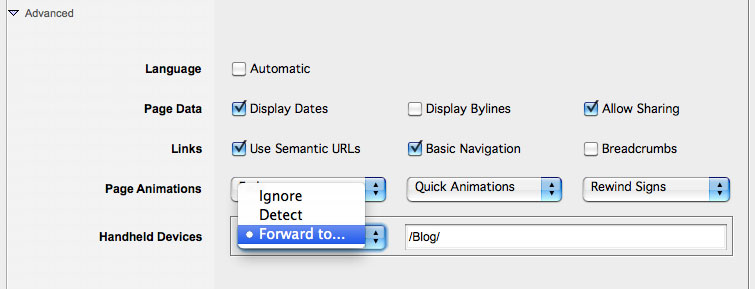 If you choose the Forward option, fill the URL field with a relative link as seen in the example on the left. If you choose the Forward option, fill the URL field with a relative link as seen in the example on the left.
You can put the container anywhere in the website, but the lower pane of the Website Root is ideal.
|
Best practice for making mobile-friendly web pages
- Do not use tables with more than one column: on a small screen, content with more than one column will be squeezed together.
- If you use tables, do not use fixed column widths: use percentages.
- Keep navigation simple: make the hierarchy shallow [as few containers to burrow through as possible].
- Optimize images for low bandwidth: make them as small - and as few - as is practical.
How the Mobile UI works The FirstMagic mobile UI will display a custom Menu with a Home Link, a Search box, and a "Browse"-button that opens an index of available pages. The index is either the Top Menu Root folder [Detect], or the folder you specify [Forward To...].
The Mobile UI will not display Sidebars, Footers or Widgets: only the web page itself, a Menu, and basic Footer navigation will be rendered.
FirstMagic will automatically detect if a device is a Handheld or not, according to a set of rules determined by the FirstClass Administrator. You can turn detection OFF for your site by setting the Handheld preference to "ignore".
|
Make your Sidebar and Footer context-sensitive By default, FirstMagic will publish the same Sidebar and Footer to all pages on your website. Context-sensitive objects means you can give each page [or group of pages] unique Sidebar and Footer items. Here´s how:
- Open the Sidebar/Footer object [webpage template, FirstClass document or Widget] you want to be context-sensitive. If the object is a container or calendar, open its Properties Window instead.
- In its Keywords field, write in the filename of the web page you want it to attach itself to.
- If you want to attach it to more than one web page, write in more names, separated by a comma.
The object will now only display on the web pages you listed. If the Keywords field is empty, it will display everywhere.
Use this feature to attach specific Widget configurations, or specific Listing Layouts, to specific web pages, and you can give each web page it´s own, unique Sidebar menu or Footer links.
|
Password-protect something
- You can password-protect any container by opening it´s Permissions form [in FirstClass: Collaborate -> Permissions], and setting All Users to Disallowed. You will be presented with a Login prompt when visiting it, and will have to login with your FirstClass credentials.
- If you want to protect a Listing Container Layout, set the permissions to All Users = Summary instead of Disallowed: this will let visitors see a list of your content, but they cannot open it without logging in: clicking on any item in the list will cause the Login prompt. [Summary allows Top Menu items to drop down].
- Refine the permissions by adding particular users or groups of users to the Permissions form, as needed.
|
Post to your Blog without logging in Give your blog an e-mail Address, and you will be able to post to the blog from any device without logging in to FirstClass, simply by messaging it. Here´s how to set it up:
- Open the Permissions form for your Blog, and uncheck the Do not publish in Directory checkbox, then set All Users to Contributor.
- Open Collaborate -> Directory, locate your Blog, and double-click it. In the Alias field, write in your desired e-mail address.
- You will now be able to post, but so will everybody else in the world, which is undesirable. So, you need to secure your Blog. This is done with a FirstClass Rule:
In the blog, open Collaborate >> Rules.
Click New Application Rule, and make the following Rule:
When: Message Received
Conditions: If [all] The Internet header From: [is not equal to] -->> the address you want to use
Actions: Delete silently
This is an example of a very basic rule, and as is, it could easily be spoofed. Add more conditions that suits you to further increase security [for example, you could set it up to only accept posts that contains your IP address].
Also, customize the Permissions form itself to be strict with what will be accepted [for example, reject messages larger than X kilobytes, or set all incoming messages automatically to unapproved].
Note: it it is possible that your FirstClass Account may not have the privileges to enable an email address. If so, ask the FirstClass Administrator to do it for you.
|
Remove the Read More-link Add an asterisk * to the end of the filename of each of the Blog Posts you want to remove it from.
|
|

